Accessible design so everyone can use your website
November 1, 2026 · Design and Layout · David Semones
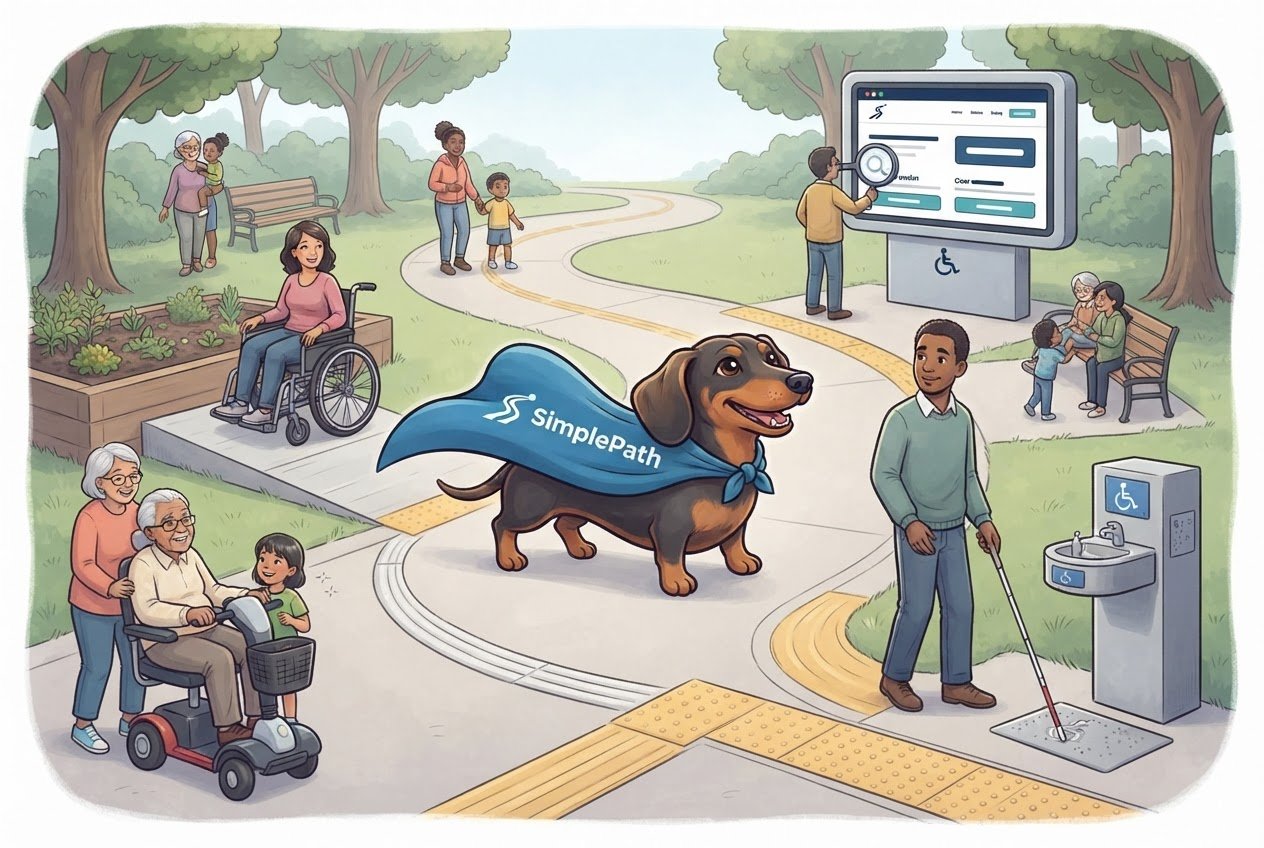
Accessible design means building your website so that anyone can read it, navigate it and use it, whether they have low vision, are colour blind, can't use a mouse, are deaf, or are just squinting at a phone in bright sunlight. You don't need to know any code to get most of it right. It comes down to five habits: readable text with strong contrast, descriptions for images, a clear page structure, everything working from the keyboard, and captions on video and audio.
It's also good for business. The same changes that help a visitor with a disability make your site easier for everyone, and they help search engines and AI assistants understand what your pages are about.
How do I make text easy to read?
Start with size and contrast, because they cause the most trouble.
- Size: Keep body text around 16 pixels (a typical paragraph size on most sites) or larger. If you have to lean in to read it, so will your visitors.
- Contrast: Contrast is the difference in brightness between text and the background behind it. The common standard, called WCAG (the Web Content Accessibility Guidelines), asks for a ratio of at least 4.5 to 1 for normal text. In plain terms: dark grey or black on white passes, light grey on white usually doesn't.
- Colour isn't the only signal: Roughly one in twelve men is colour blind. If an error message is only shown in red, some people won't spot it. Add words too, like "Please enter your email address."
- Short paragraphs: Big blocks of text are hard for everyone, and harder for people with dyslexia or attention difficulties. Three or four lines per paragraph is plenty.
How do I make images, headings and links work for people who can't see them?
Many people use a screen reader, which is software that reads a web page out loud. It can only read what's actually written down, so a few labels matter a lot.
Alt text. This is a short written description attached to an image. A screen reader reads it aloud, and search engines use it too. Describe what the image shows and why it's there: "Baker holding a tray of sourdough loaves" beats "IMG_4021" or "bread." If an image is purely decoration, it's fine to leave the description empty so it doesn't clutter the experience.
Headings. Headings are the titles that break a page into sections. Screen reader users often jump from heading to heading the way sighted people skim. Use one main title per page, then section headings under it, in order. Don't pick a heading just because it looks bigger.
Link words. Screen readers can list every link on a page, out of context. A list reading "click here, click here, read more" is useless. Write links that say where they lead, like "see what each plan includes" or "get in touch with us."
What about people who can't use a mouse, or can't hear?
Some people navigate with only a keyboard, a switch device or voice commands. Others can't hear your video. Cover these with a few checks:
- Tab through your site. Click on the page, then press the Tab key repeatedly. You should be able to reach every link, button and form field, in a sensible order, and see a visible highlight showing where you are. If the highlight disappears or you get stuck, keyboard users are stuck too.
- Label every form field. A box that says only a faint "Name" inside it loses its label the moment someone starts typing. Put the label above the box so it stays visible and screen readers can announce it.
- Make buttons big enough. Tiny buttons are hard to hit with a shaky hand or a thumb. Leave breathing room between them.
- Caption your video. Captions help deaf and hard-of-hearing visitors, and anyone watching with the sound off. If you publish audio, offer a written transcript.
- Don't auto-play. Sound or motion that starts on its own can be disorienting. Let people press play.
How do I check my own site, and where does SimplePath fit in?
You can do a surprising amount of testing in ten minutes. Zoom your browser in to 200 percent and see if the page still works. Tab through it with your keyboard. Squint at your text from arm's length. Then read your alt text and link wording as if you couldn't see the screen.
If you want a quick outside look at how your current site is doing overall, the free website grader will score an existing site. Treat it as a starting point, not a full accessibility audit, since checking real-life use still takes a human with a keyboard.
If you're building a new site, accessibility is much easier to bake in from the start than to patch later. SimplePath is a website builder where you describe the site you want and it builds it for you. You can see what SimplePath can build, from simple sites to stores, blogs and member areas. Whatever you build, tell it what you need in plain words, such as high-contrast colours, large readable text and clear button labels, then run through the checks above before you publish. The frequently asked questions page is a good place to learn how it works.
Your next step
Pick one page, probably your homepage, and run the three quick tests: zoom to 200 percent, tab through it, and read the alt text and link wording. Fix what you find, then move to the next page. Small fixes add up, and you don't need to be an expert to make them. If you have questions about building a site that works for everyone, contact us and we'll help.
Drafted with SimplePath's own AI blog, then updated and published by David before it went up. It's the same tool included with the Grow plan. See how it works.