Version control and rollbacks if something breaks
November 11, 2026 · Running Your Site · David Semones
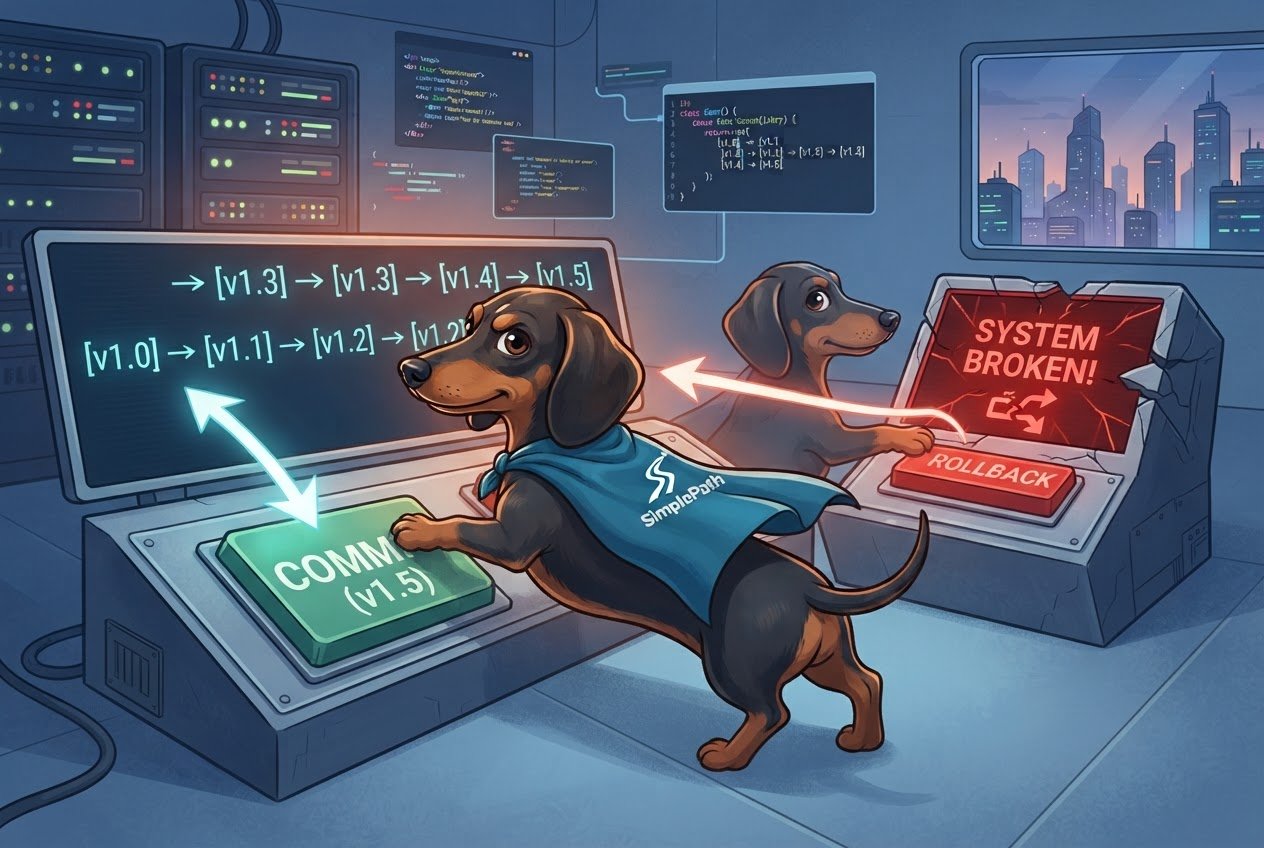
Version control is a saved history of the changes made to your website, and a rollback is using that history to put the site back to the last version that worked. If something breaks, you don't have to figure out what went wrong first. You go back to the good version, get your site working again, and then work out the problem calmly.
That's the whole idea. The rest of this post covers what to do in the first few minutes, how to set yourself up so a rollback is easy, and how to decide whether to roll back or fix the problem where it stands.
What are version control and a rollback, in plain terms?
Think of the version history in a shared document. Every time something changes, the document keeps a copy of what it looked like before. If someone deletes a paragraph by accident, you open the history and bring the old version back. You don't have to retype anything.
Websites can work the same way. Version control means the site keeps earlier copies of itself, usually with a date and a note about what changed. A rollback is the act of choosing one of those earlier copies and making it the live one again.
You don't need to know how websites are coded to use this. The only thing you need to know is that undo is a normal, expected part of running a site, not an emergency measure. Even professional developers who build sites for a living break things. They just keep a way back.
What should you do the moment something breaks?
Stay calm and work through these steps in order:
- Stop making changes. Every extra edit makes it harder to tell what caused the problem.
- Write down what you just changed. A new page, a swapped photo, a changed menu, a new payment option. The most recent change is the most likely cause.
- Check what's actually broken. Open your site in a private or incognito browser window, and ideally on your phone too. Sometimes the problem is just your browser holding on to an old copy of the page.
- Restore the previous version. If your site has a version history, pick the latest version from before your change and restore it.
- Check the live site again. Click through your home page, your contact page, and anything that takes money or collects messages. Those are the pages that cost you the most when they're down.
- Redo your change in a smaller piece. Once the site is stable, try again, one step at a time, so you can see exactly which step causes trouble.
If you can't find a way to restore a previous version, or you're not sure the restore worked, that's a good time to get in touch with the SimplePath team rather than guessing.
How do you make rollbacks easy before you need one?
The best time to prepare is when everything is working. A few habits make a big difference:
- Change one thing at a time. If you update a page, add a product, and change your colors all in one sitting, and something breaks, you won't know which one did it. One change, check, then the next.
- Check your site after every change. It takes a minute. Look at the page you edited on both a computer and a phone.
- Keep your own copy of the important stuff. Save your page text, your logo, and your key photos in a folder on your computer. If everything else fails, you can rebuild from that.
- Keep a simple change log. A note on your phone is plenty: the date, what you changed, and whether it looked right. When something goes wrong a week later, you'll be glad it's there.
- Avoid big edits at bad times. Don't redo your homepage an hour before a sale or a busy weekend.
If you build with SimplePath, where you describe the site you want and it gets built for you, the same habits apply. Describe one change at a time, look at the result, and then move on. That also makes it easy to tell the builder exactly what you want undone. To see how version history and restoring work on your plan, check the frequently asked questions or ask us directly.
Should you roll back or fix the problem where it is?
Use this rule: if the problem affects visitors right now, roll back first. If it doesn't, fix it in place.
Roll back when:
- A page is blank, missing, or showing errors.
- Your contact form, checkout, or login stopped working.
- The layout looks scrambled on a phone or a computer.
- You can't tell what went wrong after a few minutes of looking.
Fix in place when:
- It's a small typo, a wrong price, or a photo that's slightly off.
- You know exactly what caused it and the fix takes a minute.
- Rolling back would throw away several good changes you made since.
That last point matters. A rollback sends the whole site back in time, so any good edits made after the restore point disappear too. Check what you'd lose first, and keep your change log handy so you can redo those edits afterward.
What's the next step?
Before you need it, find out how your own site handles this. Look at what's included in each plan on the pricing page, read the FAQ, or send us a question about restoring an earlier version of your site. Then save your text and images in a folder today. Five minutes now is a lot cheaper than rebuilding a page from memory later.
Drafted with SimplePath's own AI blog, then updated and published by David before it went up. It's the same tool included with the Grow plan. See how it works.